
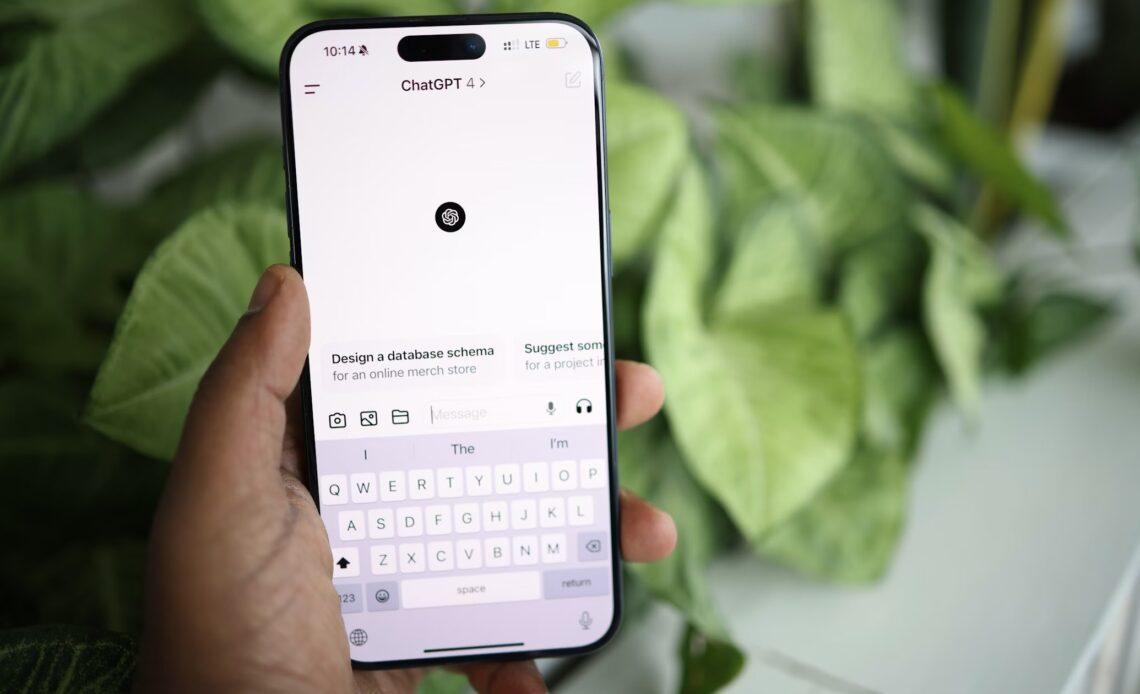
ChatGPT is now one of the most popular tools people use online. From content creation to quick problem-solving, ChatGPT has become a go-to tool for millions of users. It helps save your precious time and simplify your routine work, but at times, glitches can occur, and you may see ChatGPT not loading or responding to you. However, there is no need to worry since most of these problems have quite easy solutions.
1. Check if ChatGPT Is Down

Before trying any fixes, it’s important to check whether the problem is actually on ChatGPT’s side. The server could be under maintenance or facing an issue due to high traffic, and a message would indicate a problem when trying to load ChatGPT. This would affect all users, since they all depend on the same server. The easiest way to check is to visit OpenAI’s website.
Furthermore, if the site is functioning normally, but ChatGPT isn’t providing results, it might be due to high traffic. High amounts of users at the same time can affect the system. No problem should arise in such situations; you only have to be patient. Everything will likely resolve itself shortly.
2. Check Your Internet Connection
It could even be a problem with your internet connection rather than ChatGPT. Slow Internet speeds can sometimes interfere with your connection, regardless of the service you’re using. Test whether you can browse other websites. You may also try restarting your router or using mobile data if you have been relying on Wi-Fi up until now.
3. Log Out and Log Back In

Sometimes, ChatGPT may stop working because your login session has expired without you noticing. This can happen if you’ve been inactive for a while or left the tab open. When the session expires, the chatbot may stop responding. To fix this, log out of your account and log in again. This simple step often solves the issue.
4. Use the ChatGPT Mobile App and Incognito Mode
When the web version of ChatGPT doesn’t work as expected, using the mobile app can help. It doesn’t depend on your browser, which means it can avoid many common web-related problems. The app is available on Android and iOS.
An extension or browser setting may affect your ability to use the website properly. The solution to this problem is to access ChatGPT in an incognito window or disable extensions altogether. If that does not solve the problem, you can also try using another browser.
5. Clear Browser Cache and Data

Another reason ChatGPT may stop functioning is your browser’s cache. Your browser cache may prevent sites from loading properly in some cases. All you need to do in such cases is clear your cache and browse through data; after that, restart your browser. However, keep in mind that all your accounts will be logged out.
6. Disable VPN
A VPN connection can sometimes create issues while using ChatGPT. VPNs use shared IP addresses, and some of these may be restricted or flagged by the system. This can lead to problems like the website not loading, showing errors, or not responding properly. To check if this is the cause, turn off your VPN and reload the ChatGPT website. If everything starts working normally, then the VPN was likely affecting your connection.