While the final release date of Android Marshmallow is away, Google has released the final preview of Android Marshmallow. If you own a Google Nexus 5, Nexus 6, Nexus 9 or Nexus Player, you can download the preview today and install the build on your device. Note: This is a nearly complete build of Android Marshmallow and it’s bound to have some bugs that will be addressed by Google later in the release build. So fossBytes advises you to install the Android Marshmallow Final Preview on a device which isn’t of your daily use. Make sure to make a complete a backup of your devices.
How to download and install Android Marshmallow?
- Download and install the latest Android Studio Preview on your Windows machine as it will install Fastboot and ADB tools. You can access them using the command terminal on your computer.
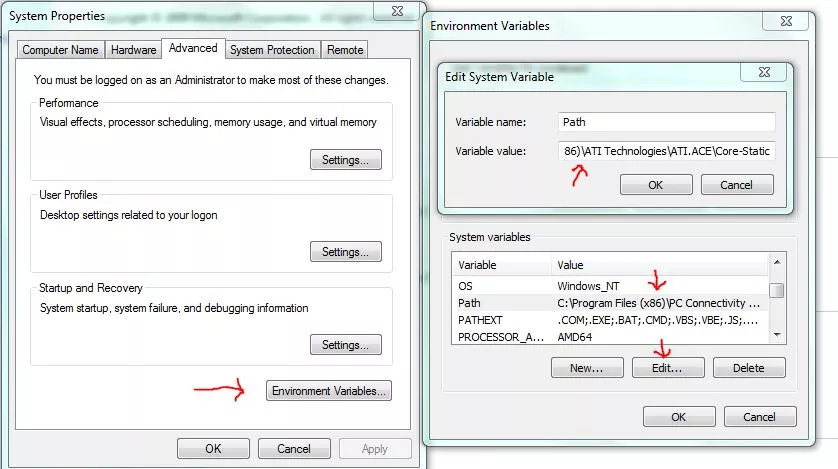
- Now you need to add the SDK folder and specify its path using the steps below:
- In your PC, right click on My Computer and go to Properties.
- Go to Advanced System Settings followed by System Properties > Advanced > Environment Variables.
- In the Environment Variables window, select Path and click on Edit. Type the name of directory path where the SDK is installed. Don’t forget to add semicolon separating the entries.
- Now enable the USB debugging on your system. Go to Settings > About Phone > Software information. Enable it by tapping the Build Numberseven times.
- Go to Settings > Developer options and select USB debugging.
- Now download the Android Marshmallow factory images for your device from the links given below:
- Now it’s time to extract the downloaded Android Marshmallow archive.
- Connect the device using the USB connection.
- Start your device in fastboot mode. This could be done easily while pressing a key combination while the device powers up. Know about them here.
Another way to fastboot your device is to use ADB tool. With the device connected, execute this command using command terminal: adb reboot bootloader
If there are some issues with device’s bootloader, unlock it using this command in terminal: fastboot oem unlock
Now we’ll install the Android Marshmallow preview on Nexus:
- Find the unzipped Android Marshmallow factory image by opening a command terminal.
- Now execute flash-all.bat which could be found in the extracted image.
- For security purposes, Google advises to lock the bootloader by this command: fastboot oem lock
Now, Android Marshmallow preview is installed on your Nexus device. Your device will regular over-the-air updates.
To uninstall Android Marshmallow preview and go back to the previous Android version, download the factory images from this
page and repeat the above steps. Don’t forget to clear the files from Fastboot and ADB that were added earlier.
For more updates, subscribe to our newsletter.