
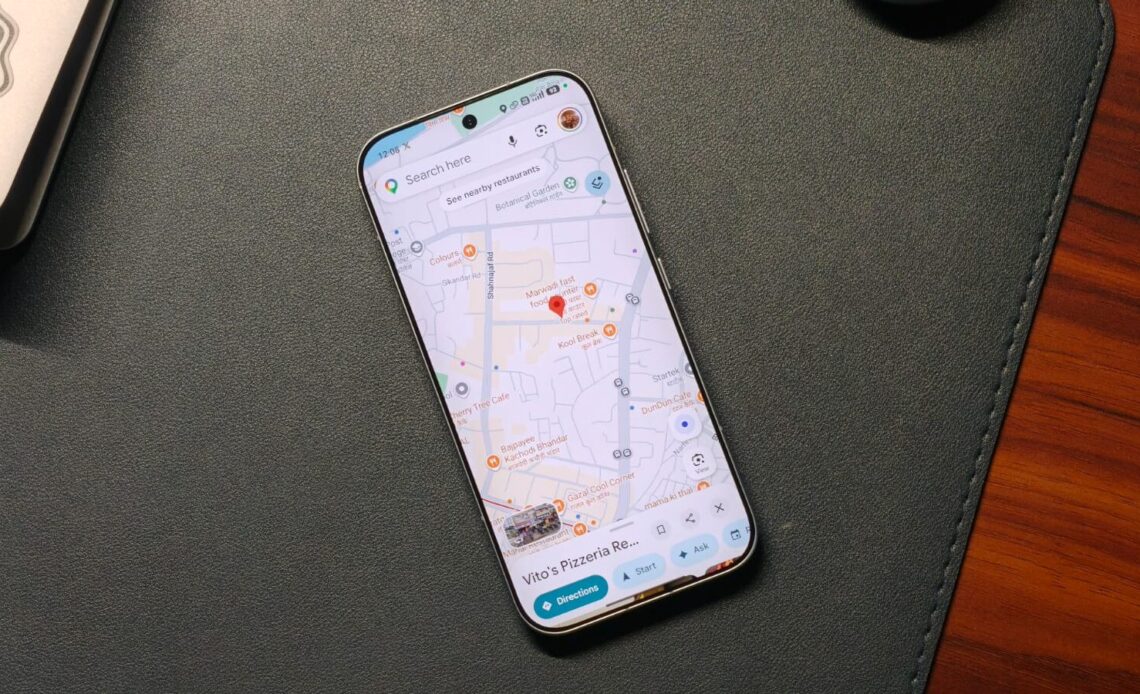
Google Maps is now one of the most commonly used applications for daily travel. It provides direction, displays real-time traffic information, and facilitates searches of destinations such as food outlets, petrol pumps, or even accommodation centers. Nevertheless, most of its users use only the primary functions and overlook the others. From organizing your saved places to improving navigation accuracy, these tools can make traveling and planning far more convenient.
1. Use Emojis to Organize Your Saved Places

The first problem with saved places in Google Maps concerns their similarity in representation. This is problematic because users cannot quickly find what they need when there are too many markers on the map. Google Maps allows people to personalize their categories with emojis. Thus, the user creates associations and sees pictures rather than icons, which facilitates the search process.
- Open Google Maps.
- Tap on the “You” tab at the bottom.
- Open an existing list or create a new one.
- Tap Edit (for existing lists).
- Select the Choose icon.
- Pick an emoji that matches your category and tap Save.
2. Avoid Stairs While Navigating

A useful feature of Google Maps is the ability to hide stairs along the way. By enabling the accessibility function, the application will automatically adjust the route and find a better option without any additional steps.
- Open the Google Maps app.
- Enter your destination and tap Directions.
- Select Walking or Transit mode.
- Tap the filter/settings icon.
- Turn on Wheelchair accessible.
- Choose the recommended route.
3. Turn Screenshots Into Saved Locations
These days, people often discover new places through social media. But when you actually need those places, they’re hard to find in your gallery. To make this easier, Google Maps includes a feature that converts screenshots into saved locations. It uses AI to scan text in the image and match it with real places. This keeps all your saved spots in one place, making travel planning more organized and efficient.
- Open Google Maps on your Apple device.
- Tap on the You tab.
- Open the Screenshots list.
- Allow access to your photos when prompted.
- Tap Choose screenshots and select the screenshots you want to scan.
- Tap Add and wait for processing.
- Review and save the detected locations.
4. Set Reminders for When to Leave

Most people calculate their departure time manually. They consider their destination and traffic, then use other applications to remind them of the exact departure time. However, Google Maps can do all of this in a single application. It allows users to schedule trips and be reminded of their departure time.
- Open Google Maps.
- Search your destination.
- Tap Directions.
- Tap the three-dot icon.
- Select Set a reminder to leave.
- Choose Leave at or Arrive by.
- Enter your time and save your reminder.
5. Fix Incorrect Location on Google Maps

One problem that can arise when using maps is inaccurate location tagging. This can make it difficult to find your way through crowded places. This problem can be solved by using the camera-based map calibration system. This will help the phone tag locations of the surrounding buildings be accurately calculated to determine your position.
- Open the Google Maps app.
- Tap your current location (blue dot).
- Select the Calibrate location.
- Tap Start.
- Use your camera to scan nearby landmarks.
- Wait for the accuracy confirmation.