
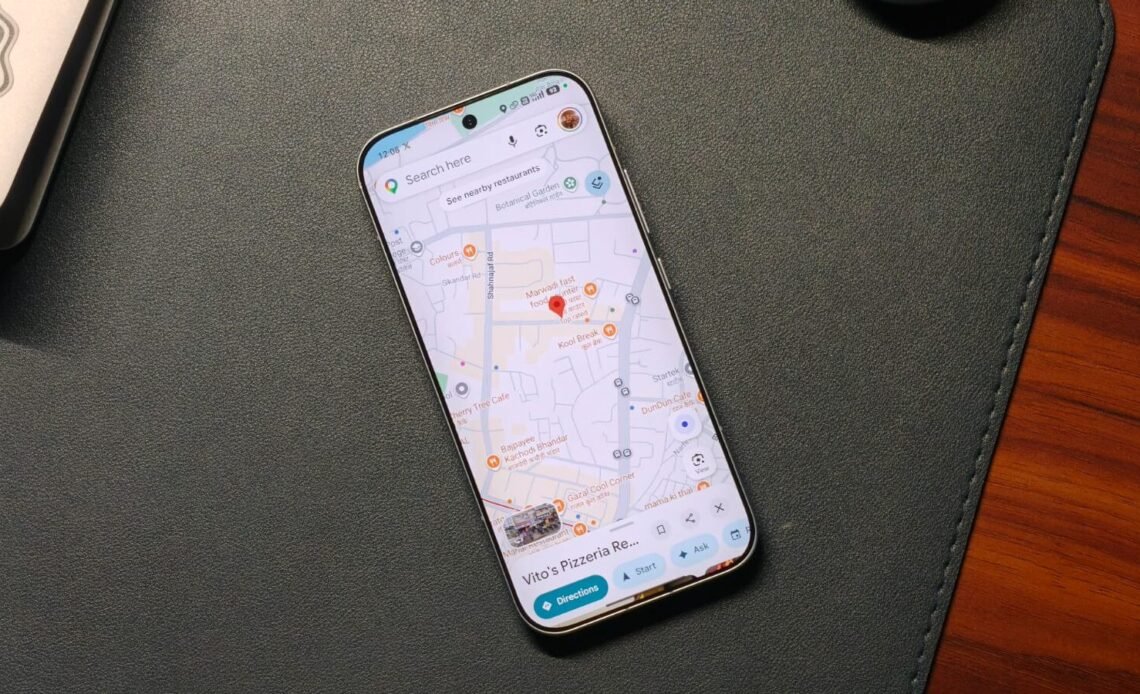
Whether you’re going to work or visiting a new place, you can use Google Maps to find the perfect route. With its live traffic data and strong navigation features, you won’t have any problems planning your routes. You can also save places you visit often, including your home address, and find them quickly when you need them. However, what if you’ve moved and your saved home address is no longer correct? Here’s how to update your home address in Google Maps on your iPhone or Android phone.
Change Your Home Address on Google Maps
The home address you saved can be directly edited within the Google Maps application. The process is almost the same whether you have an Android or an iPhone. The following steps will help you change your home address:
- Open up the Google Maps application on your iPhone or Android device.
- Go to the You tab at the bottom.
- Open the Saved tab and tap Labeled.
- Click Home from your saved list.
- Tap the three dots beside Home.
- Choose Edit home from the available options.
- Tap the X icon next to the current address to clear it.


After deleting the current address, Google Maps will allow you to enter the new address. There are several ways to enter the new home address.
Different Ways to Add Your New Home Address on Google Maps
Now that you have removed your previous home address, you can enter your new location in several ways. You can search for an address, use voice search, or tap on the map itself. Here’s how you can add your new home address:
- Enter your new address in the empty address field.
- Select the correct address from the options that appear after you search.
- Click the microphone icon in the top-right corner of the screen to use voice search.
- Speak your new address and select the correct one.
- Click on “Choose on map” if you want to pick the address from the map.
- Drop the pin on your current address.
- Click OK/Save after selecting the right place.
- Google Maps will display the address linked to your selected location. Tap Done to finish.


Google Maps provides other options for users with iPhones and Android phones. For iPhone users, choose ‘Choose from Contacts’ if you have entered your new home address in one of your contacts. Choose the correct contact name and enter the address. For Android users, select “Use your current location” once you reach your new house. Click on ‘Continue’ after verifying the address and allow Google Maps to find your location.
How to Save Trips to Your New Home Address on Google Maps
The Google Maps app also lets you save your routes using the Saved trips option on the map. This can be helpful if you always travel from locations such as your workplace, school, or favorite restaurant back home. Here is how to save your route for traveling to your new home address:
- Open Google Maps.
- Tap on the search bar located at the top of the screen.
- Select Home from the choices available.
- Enter your starting point in the ‘From‘ box.
- Select your mode of transport (e.g., car, motorcycle, or train).
- Review the directions and click Save.


The Google Maps app will save your route under You > Saved trips. You can use this menu anytime to access your saved routes. Click your route and start driving to your new home address.